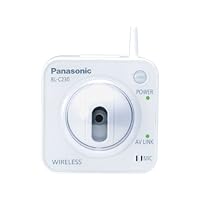
 I wanted a "nanny cam" to monitor a new nanny, but felt a little uncomfortable about having one of the hidden ones. I felt that having a visible camera known to the nanny was a more respectful approach, although I would need several of them to monitor multiple areas since the locations would be known (and could potentially be avoided).
The Panasonic BL-C230A seemed like a great choice as it is from a major international brand and the reviews of its other wired and wireless cameras indicated that they were well received.
PROS
1. It's cute It could star as a character in a Japanese cartoon. The nanny cam is a cube about 3" x 3" x 3 1/4" (approximately) and actually looks cute with its single eye and single antenna that looks like an ear. It has a high quality look to it with its high gloss white finish and reminds me of a smaller version of an old Sony Dream Machine alarm clock. It actually looks like it belongs on a nightstand in the bedroom or in a kitchen. It does not look out of place in a home and does not have a "tech" feel to it. I think this is a major plus as I really don't want the nanny to feel like I'm trying to determine if she is a terrorist.
2. Uses Wi-Fi 802.11 b only, g only, b/g both
3. Free lifetime use of Panasonic's "dynamic DNS server" (more on this later)
4. Easy setup (maybe) Easy to use paper instructions limited to 3 sheets of paper (of which only 2 are necessary). Sheet 1 shows step-by-step instruction on how to plug the camera into your router with a cable (not supplied and necessary even for wireless in the setup phase) and to connect the power cable. Sheet 2 is the sheet on how to configure the camera using your computer. This is the part that has the potential to be alarming or at least uncomfortable if you're not lucky enough to have UPnP (universal plug and play) on your router. (More on this later.)
5. Great interface with web browsers Once your device is set up for internet access (more on this later) it has a fairly intuitive interface using Internet Explorer with an Active X control (and also on my Apple Safari although I used my PC with Vista for the camera setup with my Apple Mac for the router changes). There is a viewing screen that allows for 3 resolutions (192x144, 320x240, 640x480). There is a graphical control on the left of the viewing screen with arrows up/down and left/right for tilt and pans. What's nice is there is an auto tilt and auto pan button that will cause the camera to sweep back and forth quickly to give a quick overview of the room. Clicking on a part of the viewing screen will redirect the camera to focus on that spot. There is also multi-camera support for what appears to be up to 16 separate cameras.
6. Fantastic image quality! (It is definitely grainy in low-light, but that's to be expected.)
7. Infrared body heat detection system does not work if using only browsers but works well using the optional record software install
8. Sound detection Camera can be set to record not just with body movement triggers but sound triggers.
9. Zoom ability Only with the optional recording software installed. Does not zoom using browsers only.
10. Audio (Not on iPhone browser or Google Chrome, however)
11. Mountable Comes with mounting screws and a safety wire in case it falls from your wall
12. Seems to be Apple compatible (except the initial setup and for video recording which appears to require installation of software different from using just a web browser, although I have not yet tested the video recording feature yet) Works on my Apple Safari web browser as well as Internet Explorer (with Active X).
The system requirements written on the outside of the Panasonic box seem to indicate only Windows XP SP2 and Vista with Internet Explorer 6, 7, 8 are compatible, but this may be true only for the additional software to set up video recording and the initial camera setup. The browsers seem adequate so far for just watching streaming video and taking still photos as well as maneuvering the camera. I cannot get sound, however, using my Apple iPhone Safari browser or Google Chrome on my PC. Sounds works well on Internet Explorer with Active-X.
CONS
1. Setting the camera up for internet access outside of your home can either be very easy or can be scary for technophobes. Your router must support something called UPnP, Universal Plug and Play for this to work smoothly (I imagine). When I say smoothly, I mean, being able to follow the step-by-step instruction on sheet #2. If you do NOT have a router that supports UPnP then the step-by-step instructions basically tell you to go to the manual on the CD which gives a great introduction on private IP addresses, WAN addresses, static IP addresses, and the usefulness of something called a "dynamic DNS server".
If you are now thinking that you will be over your head by all of this jargon, realize that most routers support UPnP and thus you can follow the step-by-step instructions which use an "automatic" mode in the configuration steps using your web browser. I am using an Apple Airport Base Extreme which does NOT support UPnP. My experience was that it required about 10 extra minutes for me to figure out that I needed to set up something like "port mapping" for my Apple router.
2. Although this is a "wireless" network camera, the description is slightly deceptive. It is wireless only in the networking sense. I should have thought about this more carefully, because what I really expected was a "cordless" camera. This camera has a powercord attached to it, although is "wireless".
3. It seems that there are 2 versions of video recording software that is an optional install. Oddly, the one for single camera support versus multiple (16) camera support are compatible with different Windows versions.
4. I have installed the optional software to my Windows Vista PC to support up to 16 cameras and found that the software works well and is intuitive to use for motion-detection recording. The software appears to be fine for my uses, but you have to pay for a retail version of the software if you want expanded features such as the ability to export their video data files to JPEG or MPEG format, or if you want to use their video backup feature. (I have separate third party software that mirrors my internal hard drives to external drives, so the lack of a built-in video backup feature is not critical to me.) I have not yet tried to see if this optional recording software will work with Bootcamp or VMWare on my Apple Macbook Pro.
TIPS
For those of you who also use an Apple Airport Base Extreme (which does not support UPnP), here's what I had to do:
A. Launch "Airport Utility" software from my Mac then select "Manual Setup"
B. Select "Advanced" from the top tab
C. Select "Port Mapping" from a sub-tab
D. Click on the "+" to add a device to this mapping so that an outside computer can access my device and is thus "mapped"
E. In the drop-down menu select "Personal Web Sharing"
F. Make sure the "public" and "private TCP" ports have the same number such as "80" in the text fields (which they do by default if you selected "Personal Web Sharing"
G. Save and update the modem (requires restart)
H. Go to the installation CD for the Camera and using Internet Explorer to configure the camera, choose "Setup" from the top in the web page
I. Select "Static" and NOT "Automatic Setup" and type in a number such as "80" into the "Port No." field, and save
J. Go to the "Internet" tab of the web page
K. Select "Disable" from the "Auto Port Forwarding (IPv4) option. This is DIFFERENT from the step-by-step instructions given which only work for those who have UPnP.
L. Select "Register with ...........com"
M. Select "Save"
N. You will then be directed to the "..............com" website which is Panasonic's "Dynamic DNS server" which basically will allow your router if it does not support UPnP to work. This website is also how you will be able to view your camera using a web browser outside of your home and local network.
CONCLUSION
I am impressed enough to have ordered two additional "wireless" cameras. Its ease of use with the iPhone's standard web browser is simply awesome. My colleagues at work were so impressed by it that they have also placed orders for the device within hours of them seeing for themselves the streaming video on my iPhone and on my desktop at work.
I also suspect that my nanny will not feel like I'm some crazy overly zealous parent either, but that I just want a logical way to check up on the kids. It is a non-intimidating appearing piece of houseware that just seems fun and entertaining while being a legitimate surveillance camera.
I hope this review was of some help!

Improvements:
Clear cover over rotating lens assembly should help keep dust and dirt off lens and out of internal gears.
Audio alarm options (although my last C-131 had a similar capability).
External connection for NC or NO relays.
The buffer memory has been increased substantially. The camera can store 3 to 4 times as many still shots before filling memory and/or overwriting the earliest captured images.
Disappointments:
Tripod threads were non-existant on my BL-C230a. The insert where the threads were supposed to be was a plastic insert (similar to my last C-131 the earlier C-131s had a tapped metal insert), but the threads were not cut into the plastic insert. I tried using various bolts and self tapping screws to no avail. Don't know if this is a defect in the C-230a I received, or is representative of the majority coming off the assembly line.
Night vision in low light is much worse than the C-131. Even with the option set for color low light, the picture is terribly grainy when compared to my last C-131 sitting side by side under the same lighting conditions.
In general the 230 is similar to the 131. Setup and connectivity are the same, the daylight images are good. The 230 now offers H.264 video, but I don't see that as a major draw. For my viewing I use predominantly JPEG and rarely JPEG4. The focal length of the lens has been changed it provides a wider angle view. Also the panning and tilting limits are reduced, but coupled with the wider angle view, the total pan and tilt viewing limits are the same as the C-131 at least as cited in the specification. In reality, the total pan viewing range (left to right limits) is slightly less than the C-131. I'm not too thrilled about this.
I do use my cameras for low light and night time monitoring, and the quality of the low light images of the 230 is much worse than its predecessors. By low light I mean viewing an outdoor scene illuminated by flood lights. In reality, it's a well lit area. The C-131 provided pretty good video and captured still images well, and I was expecting the same from the C-230. I was sorely disappointed to see the very grainy images. I hope Panasonic will improve this aspect of the camera.
Buy Panasonic BL-C230A Wireless Internet Security Camera Now
Last year I purchased the BL-C131A camera that has similar attributes to this model. When I went to buy a second camera, it had been discontinued and replaced with this new model.For anyone like me who's considering purchasing a second camera, don't hesitate to pick this one up. It sets up almost exactly like the previous model, comes with the same DDNS service so you can easily monitor and control it from afar, and if anything the picture quality has improved greatly, something I didn't think would have been possible given the excellent quality of the BL-C131A.
A couple of physical differences to be aware of, and also something that is left off the documentation: if you're using a tripod or tripod screw on your present camera, you know there are holes for that in the back and on the bottom. On this model, the tripod threads are only on the back, so if you are planning on putting it on some kind of tripod threaded device, keep that in mind.
This camera comes with a clear plastic cover over the front of it that looks like it was put there for shipping and might be designed to be removed in use. No, it's a permanent part of the front of the camera and keeps dust and other hazards in your house from messing up the front of the camera. Don't try to pry it off, it's meant to stay put and it doesn't impact the image quality one bit.
The wireless setup is the same as in the BL-C131A but they forgot to mention one thing in the documentation that was required of the BL-C131A and left me wondering if it was needed here-if you use MAC address filtering on the wireless of your router to limit access to your network that way, you need to not only list the MAC address of the camera so that it can gain access to your network, you also need to add a second MAC address to the "admit" list that is one digit higher than that of the camera. So if your camera's MAC ends in "CC", you need to also admit the same MAC again but with "CD" at the end of the second address. It's a minor fluke in this camera that they did mention for the previous model, but neglected to say anything about with this model. I set it up without the second MAC, and it didn't work. Added the second MAC, and everything started working perfectly. And don't forget like I did on this one-you'll need to specify a different port to forward on your router than you set up for the first camera. I did set up the different port number on the camera itself, then forgot to tell my router to forward that port from the outside. Once I did that, I had instant access to it from outside the house via the Panasonic DDNS service (you need to register a new unique URL for this camera just like you did for the first).
I'm currently also using a Total Control software app on my Blackberry to see both of my cameras while on the go, and that works great.
The other feature that may be of interest to some do-it-yourselfers is that the camera has switch closure output terminals on it that can be triggered from the web control panel (as well as a remotely controlled buzzer in the camera that I haven't figured out a use for yet). So if you're handy and can wire those switch contacts to an external relay or device, you could turn things in your house on and off remotely. I have an electrically operated pet door that leads out to my (fenced) back yard which I'm considering interfacing to the camera, so I can decide if I want to let my pets in and out when I'm not home. All I need to do is install the camera with a good view through the pet door (it's clear plexiglas), wire the camera's trigger up to the door's switch, and I'm good to go. You can also use the trigger to unlock an electrically operated door latch in the entryway to a secure office, for example. There are also additional external sensor input terminals on the back for things like door switches and motion sensors that you might want to place in a location not covered by the camera's own internal sensors and use the camera's email feature to alert you when something happens.
Finally, even if you think you won't use the included camera recording software on the CD provided, install it anyway. Its monitoring feature, allowing you to see all cameras in your network on one screen, and to click to select one of them to be viewed as large as you like, is much much better than opening up multiple browser windows on your desktop to accomplish the same task, or using the "Multiple" tab on the browser app. It's an evaluation copy for the full version that lists for $399, so its recording features are pretty limited (no export allowed to standard JPEG or MPEG formats, for example). But install it anyway to have a one-stop place to see all of your cameras by opening one application. I also installed it on a PC that is off my network, and after inputting your standard DDNS URL's in its setup and storing your usual login information, it provides the same monitoring function on a remote machine, same as you'd get inside your network, and the login process is now automatic.
Read Best Reviews of Panasonic BL-C230A Wireless Internet Security Camera Here
Once I had the camera up and running I was pleasantly surprised by all its features and functionality. It took me 3 days though to get it up and running (I'm just your average computer savvy user). I had it running in wired mode within 15 minutes by following the instructions. Getting wireless to work, make it accessible over the Internet and setting email notifications up was painful though. The explanations, documentations and screen notes added by Panasonic to the camera software are clearly designed to drive anyone nuts. After I finally figured it all out I realized that it could have been very easy. Panasonic should just have provided decent documentation on how to set it up manually instead of relying on the "Plug & Play" functionality of routers (aka UPnP). Others here have done a good job reviewing the camera features so I'm just going to add some notes on the setup that I hope might be helpful to other "not so technical users" like me.----------------------------------------------------------------------------------------------------
----------------------------------------------------------------------------------------------------
Setup Notes:
The automatic setup worked until I got to the part for wireless and Internet access (to be able to connect to the camera from outside via Internet). If you have the same trouble I would suggest making first sure that all the following settings are correct even if you THINK you entered them correctly (no typos etc.).
***********************
a) Most important: Network settings (all kind of problems derive from having these wrong).
Go to > Setup Tab > Network(IPv4) > Connection Mode > Static > open the link and check the network settings. If your connection mode is set to Automatic then first restart the camera (Maintenance tab/Restart). Once it's up again put the Startup CD back in > start the setup program > search for the camera > select the camera > press "network settings" > check "specify an IP address".
The following settings have to be filled in correctly here:
1) IPv4 address (this is the IP address of your camera on your local network and should have already been filled during the automatic setup (e.g. 192.168.0.253)),
2) Port Number is 80 by default. 80 is fine if you don't have any other device on your home network that you want to access from outside. I changed the port number to 8001 to avoid conflicts.
3) Default Gateway & DNS server 1 should both be filled with your router's local IP address (e.g. 192.168.0.1). That's the number that you use to access the settings of the router (e.g. by putting into your Internet browser.
3) Subnet mask is usually 255.255.255.0
4) I filled DNS server 2 with 4.2.2.1 following a screen shot that I found on the Internet. Honestly: I have no idea why but it seems to work.
*************************
b) Set up port forwarding on your router. Usually you log into your router by typing the local IP address of the router into your Internet Browser (e.g. by putting into your Internet browser.)
Somewhere on your router should be a setup form for port forwarding. It might be called differently though (e.g. Virtual Server, Address transalation).
Setting up port forwarding only means that you map the port that you've chosen (8001 in my case) to the local IP address of your camera (192.168.0.253). For protocols choose "both" if there is a setting like that. Port forwarding will allow you to access the camera from the Internet.
***********************************
c) Go to > Setup > Dynamic DNS and register with (don't use the Internet tab). If the account link under "account" does not get filled then that means that your network settings are not correct (see point a, ignore the notes in red on the top of the screen, they refer to the online registration form that you haven't opened yet). If the account link gets filled then you have to click on the link to get to the website and register. Once you're finished you can find the new Internet address for your camera on the Maintenance > Status tab. That address might not work if you are connected to the Internet through the same local network as your camera (ask someone else to test).
***********************************
d) Check your wireless settings (tab setup > wireless). After checking the wireless settings I noticed that the SSID said "Netcam" instead of having the name of my home network. I'm pretty sure I never entered that.
***********************************
e) Try restarting the camera after you made changes if it still doesn't work.
***********************************
f) Email notifications: that might only work if you use the email and the mail server that your ISP gave you (for the outgoing mail). I have Comcast cable Internet so I'm using as server and my Comcast email account as login. If you want to get SMS text notifications then you have to find out what your phone email address is. It's your phone number followed by a specific domain that your cell phone service provider supplies. E.g. I have T-Mobile and so it's my cell phone number followed by .
************************************
The Panasonic customer support number is difficult to find on their website. It's 1-800-211-PANA (7262).
I found these websites more helpful than the Panasonic website:
Want Panasonic BL-C230A Wireless Internet Security Camera Discount?
I've owned various network cameras over the years, from Axis, D-Link, and Linksys. This Panasonic camera is by far the best one I've used to date because of its excellent image quality and good pan tilt feature, all at a pretty reasonable price for what you are getting. The camera itself is very compact, it's about 3x3x3, and the white cube design makes it reasonably attractive (in other words, it won't stick out like a sore thumb). Images and video are all very good in daylight conditions. Compared to the cameras I've had in the past, the Panasonic images are incredibly sharp and clear (with no manual lens focusing required). The video streams smoothly across my 802.11g network. Low light video, on the other hand, is not that great. This is a great daytime camera, it's not for you if you want to do nighttime monitoring, such as in a nursery with a night light (which I am not). The camera also streams audio, and this feature works very well. Audio comes across smoothly and clearly. The audio feature is one-way (listen only), however you can trigger the camera to sound an alarm if you want to get someone's attention on the other end. Pan-tilt feature tops off this camera's feature set. It's not 360 degree pan/tilt, but this camera also doesn't cost $1000+. You can get about 90 degrees panning left to rigiht, and about 40 degrees vertical tilt. The 90 degree pan is sufficient to cover a normal room, just place the camera in a corner and you'll be able to see most everything in the room. The movements are pretty responsive, there's maybe a 1 second lag between issuing the command and seeing movement. The pan/tilt camera movement is pretty quiet, but not 100% silent; you can hear the lens moving when it is dead silent, but otherwise it's not that noticeable. The zoom feature on this camera is digital and not optical, so basically there is no zoom (which is pretty standard for this price range). Setup was very easy and straight forward connecting to a Linksys WRT320N no problems out of the box. Just follow the instructions. The wireless range from camera to router seems to be about the same as from my notebook to router. As with all network cameras, users view the live image or video by connecting to the camera's internal web server through any standard web browser. The Panasonic web interface allows you to view a single camera, or multiple Panasonic cameras at the same time. If motion detection is something you are interested in, you'll be happy to know that the camera's built-in web interface captures and will send still images or a notification message to your e-mail when movement is detected. It also records a few minutes of the most recent movement activity detected. The motion detection works very well and is reliable. I have not looked at the software on the CD that ships with the camera, but reviewer Scoosdad has helpfully commented that it ships with video recording software that is functional (see comments section). Overall, I am very happy with this pan/tilt network camera. There are other pan/tilt network cameras that cost less than the Panasonic, but network cameras are really one of those things where "you get what you pay for". Great job Panasonic!PS: The number of shills on both sides (positive and negative) for this particular product is getting pretty ridiculous. Read through all the reviews and comments, it's not too hard to pick out who the paid reviewers are. For example, there's the non-native English speaking guy who makes the same spelling and grammatical mistakes in every review using his twenty accounts. I won't name names, it's pretty easy to figure out who it is. And then there are the pro-Panasonic guys who are maybe a little *too* into this camera. Come on guys, just make a better product instead of wasting your time on paid reviews.
Save 18% Off

No comments:
Post a Comment